
Daily Guardian UAEDaily Guardian UAE
  • Home
  • UAE
  • What’s On
  • Business
  • World
  • Entertainment
  • Lifestyle
  • Sports
  • Technology
  • Travel
  • Web Stories
  • More
    • Editor’s Picks
    • Press Release
What's On

Your Complete Guide to the Dubai World Cup 2026

March 23, 2026

OnePlus rumored to exit the US and European markets… again

March 23, 2026

Mohammed bin Rashid Al Maktoum Knowledge Award honors minds shaping future of humanity

March 23, 2026

Sharing files on Galaxy S26 just got simpler with AirDrop support

March 23, 2026

Arada awards AED183 million contract to build Reigate Grammar School Masaar, a new 2,700-capacity campus for Sharjah

March 23, 2026
Facebook X (Twitter) Instagram
Finance Pro
Facebook X (Twitter) Instagram
Daily Guardian UAE
Subscribe
  • Home
  • UAE
  • What’s On
  • Business
  • World
  • Entertainment
  • Lifestyle
  • Sports
  • Technology
  • Travel
  • Web Stories
  • More
    • Editor’s Picks
    • Press Release
Daily Guardian UAEDaily Guardian UAE
Home » How to turn off autoplay previews and episodes on Netflix
Technology

How to turn off autoplay previews and episodes on Netflix

By dailyguardian.aeNovember 15, 20243 Mins Read
Share
Facebook Twitter LinkedIn Pinterest Email

Netflix is one of the best streaming services on the planet, but even it can be annoying. If you’re tired of Netflix’s autoplay previews blaring at you or episodes that automatically keep playing when you’re done watching, you’ll be happy to know that there’s a way to turn these features off.

With just a few clicks in your Netflix account settings, you can disable autoplay previews and stop the next episode from automatically starting.

No more scrambling to turn down the volume or quickly moving on from a title just so the preview doesn’t play. You’ll have full control over what plays and when. Plus, you can prevent episodes from endlessly auto-playing after you’ve dozed off, saving you bandwidth. It’s easy to turn off. Here’s how.

The Netflix home screen with Cobra Kai.

How to turn off Netflix’s autoplay previews

Step 1: Right out of the gates, you’ll want to login to your Netflix account from a web browser.

Note: This process can also be done on your smartphone or tablet as well, but not using the Netflix app. Use your device’s browser to access your account.

Step 2: On the pull-down menu on the right side of the page, select Account.

Once here, you’ll find all kinds of information about your account, including all the profiles you have set up. You’ll need to deactivate the autoplay for all profiles individually (I guess some people like the feature?). By default, your account is selected.

Scroll down, then select Edit Setting. On the next page, choose Playback Settings.
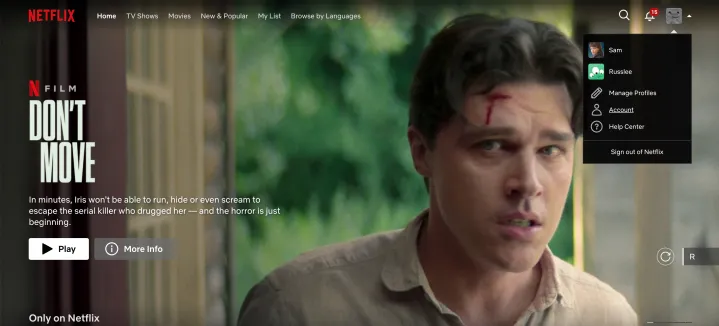
Screenshot showing how to get into the Netflix settings through the web.

Step 3: Uncheck both boxes at the top, under Autoplay controls for you — there’s a box for each playback setting, for previews and next episodes. If you uncheck the second box, Netflix will no longer autoplay previews of content that you happen to hover over. No more scrambling to turn the volume down, or quickly moving on from a title just so the preview doesn’t play. Unchecking the first will stop Netflix from automatically moving on to the next episode in a series you’re watching. While binge-watching is kind of the thing to do on Netflix, disabling this feature will actually require viewers to actively participate in said binge.

Netflix playback settings.

Step 4: Lastly, select Save to lock in your choice. Log out of your account.

As soon as you make the change to your profile on one device, it will take effect across all devices on which you’re logged into Netflix.

How to turn off Netflix autoplay -- Save button.

Netflix noted that there may be a delay before the setting changes take over, but an update can be forced by switching profiles, then switching back to reload your own profile with the updated settings.

And, if you decide that you miss the ways of autoplay, you can always head back into your settings and check a box or two.

The steps above work no matter what Netflix plan you have.


Share. Facebook Twitter Pinterest LinkedIn Tumblr Email

Keep Reading

OnePlus rumored to exit the US and European markets… again

Sharing files on Galaxy S26 just got simpler with AirDrop support

The Galaxy S27 Ultra may skip major S Pen upgrades despite Samsung’s ongoing work

Elon Musk is building a TeraFab chip factory, and it’s unlike anything in the world

Research finds AI summaries are better for learning, even if they can change your opinions

Is the Dell XPS 16 good for working on the go? Does the Dell XPS have all-day battery life?

Apple’s plans to enhance the iPhone camera are tangled in a legal mess

Watch this moonwalking humanoid robot impress with lifelike agility

Apple is reportedly sitting on new products because Siri AI isn’t ready

Editors Picks

OnePlus rumored to exit the US and European markets… again

March 23, 2026

Mohammed bin Rashid Al Maktoum Knowledge Award honors minds shaping future of humanity

March 23, 2026

Sharing files on Galaxy S26 just got simpler with AirDrop support

March 23, 2026

Arada awards AED183 million contract to build Reigate Grammar School Masaar, a new 2,700-capacity campus for Sharjah

March 23, 2026

Subscribe to News

Get the latest UAE news and updates directly to your inbox.

Latest Posts

The Galaxy S27 Ultra may skip major S Pen upgrades despite Samsung’s ongoing work

March 23, 2026

HONOR Announces the Official Availability of the New HONOR 600 Lite

March 23, 2026

Elon Musk is building a TeraFab chip factory, and it’s unlike anything in the world

March 23, 2026
Facebook X (Twitter) Pinterest TikTok Instagram
© 2026 Daily Guardian UAE. All Rights Reserved.
  • Privacy Policy
  • Terms
  • Advertise
  • Contact

Type above and press Enter to search. Press Esc to cancel.