

If you haven’t used an iPhone in a while, or if you haven’t tried to update your lock screen, they you might be happy to learn about some of the new customization features that are available in iOS 17. Although iOS has made some controversial changes to its UI, such as moving the notifications to the bottom of the lock screen, they are also more welcome changes to the customization options for the lock screen.
Introduced in iOS 16 was a slew of lock screen customization features to let you tweak your phone’s lock screen to your liking, and these same features are available in iOS 17 as well. While the lock screen used to be just a static image, you can now make it more dynamic with options like cycling through collections of your photos, so you can show off your favorite photos of your pets, your family, or beautiful locations that you’ve visited.
There are also options to see information such as weather updates, which is handy for knowing at a glance whether you’ll need an umbrella or a sweater when you go out, and there’s a really fun option for an astronomy themed lock screen which can show you views of the Earth, the moon, or the solar system.
All these lock screen options can be changed separately from you home screen wallpaper, so if you want a different look for your home screen then you can have that too. Below we’ll show you how to set a custom home screen wallpaper in a few different ways, so you can update and personalize your iPhone to your liking.
While the new StandBy mode in iOS 17 means you may see your lock screen less often when your iPhone is charging, that only engages when you turn your phone sideways. So, you can still leave it upright on the charger and still enjoy your lock screen, which works especially well with the rich, full-color always-on display on Apple’s iPhone 15 Pro and iPhone 15 Pro Max.
Although your home screen still only lets you set a static photo to appear behind your app icons, now you can choose to blur that background or dress it up a bit with some filters. What’s even more fun is that your home screen wallpaper is paired with each lock screen you set up, so it changes with each one. By default, you get a blurred version of the corresponding lock screen’s image, but you can still set it to any other image in your photo library like before.
How to set a custom home screen wallpaper when configuring your lock screen
When you create a new lock screen wallpaper or edit an existing one, your iPhone will offer up a blurred version of the same wallpaper for the background on your home screen. It steers you toward selecting this with a prominent Set as Wallpaper Pair button, but you don’t have to accept this by default.
Step 1: From your iPhone’s lock screen, press and hold any blank space to open the lock screen picker.
Step 2: Create a new lock screen by selecting the Plus sign in the bottom-right corner.
Step 3: Customize your new lock screen to your liking. See our article on how to customize your iPhone lock screen on iOS 16 for more details on what you can do here.
Step 4: When you’re finished, select Add (or Done if you’re editing an existing lock screen). A preview of your lock screen and home screen wallpapers appears.
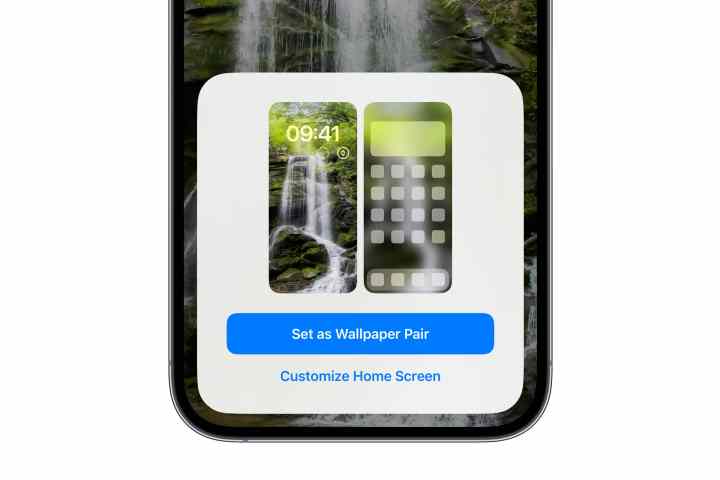
Step 5: Select Customize home screen to choose a different wallpaper for your home screen. A new home screen wallpaper editing view opens.
Step 6: From the options at the bottom, leave Pair selected (Original on iOS 16.0) to keep the same wallpaper as your lock screen; select Color or Gradient to choose a static background, or choose Photos to select another image from your photo library.
Step 7: The color and gradient options are preset to use a background that matches your lock screen wallpaper. To choose a different color or gradient, select the Color or Gradient button a second time to bring up the color picker.
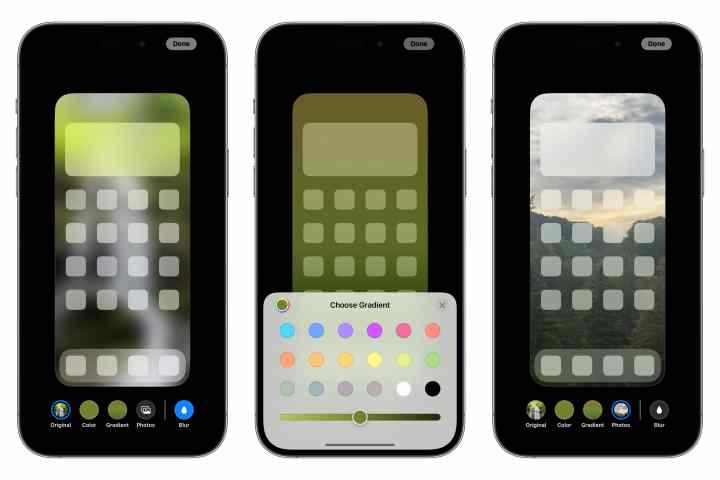
Step 8: Select Blur to choose whether to blur your home screen wallpaper. This option is only available when using a matching lock screen wallpaper or a custom photo; it won’t be active when using a color or gradient since there’s nothing to blur in that case.
Step 9: When you’ve customized your home screen wallpaper to your liking, select Done in the top-right corner.
How to change your current home screen wallpaper from the lock screen
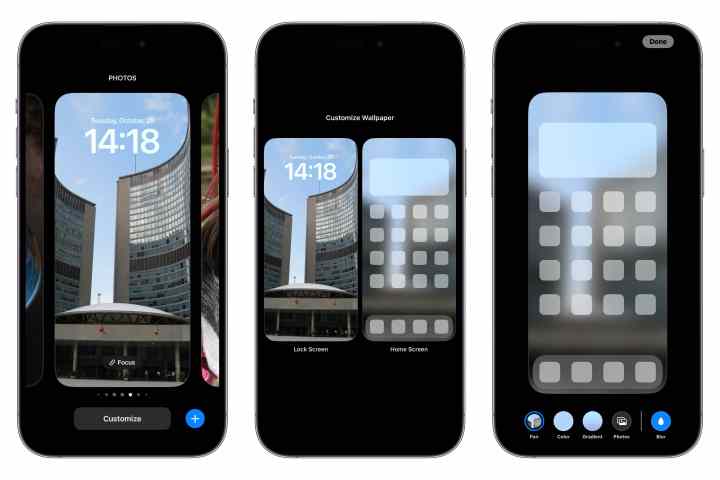
Apple made it easier in iOS 16.1 to customize your home screen wallpaper directly from the lock screen without making you go through the lock screen settings first.
Step 1: From your iPhone’s lock screen, press and hold any blank space to open the lock screen picker.
Step 2: Swipe left or right to locate the lock screen for which you’d like to edit the corresponding home screen wallpaper.
Step 3: Select the Customize button below the lock screen image.
Step 4: Tap the home screen wallpaper on the right. The home screen wallpaper editing view opens.
Step 5: From the options at the bottom, select Pair (Original on iOS 16.0) to use the same wallpaper as your lock screen, Color or Gradient to choose a static background, or Photos to select a different image from your photo library.
Step 6: If you’re using Pair/Original or Photos, you can select Blur to toggle the blurring of the image on your home screen.
Step 7: When finished, select Done to return to the lock screen picker.
Step 8: Select your lock screen of choice to exit the lock screen picker.
How to change your home screen wallpaper from the Settings app
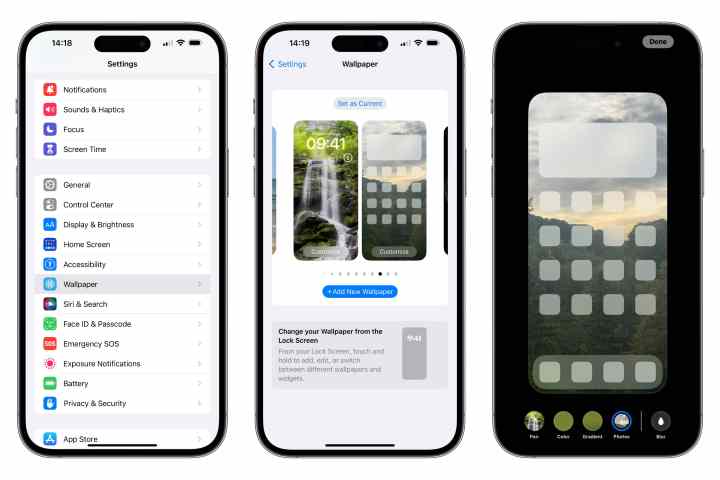
You can also quickly choose a new home screen wallpaper for your current lock screen in the same way as setting wallpapers in prior versions of iOS. This skips the step of opening the lock screen wallpaper editor and takes you directly to selecting a home screen wallpaper instead.
As long as you’re running iOS 16.1 or later (and you really should be by now), you can swipe between your different wallpaper pairs or add a new one by tapping the + Add new wallpaper button.
Step 1: Open the Settings app on your iPhone.
Step 2: Select Wallpaper. A preview of your current lock screen and home screen wallpapers is shown.
Step 3: Select the Customize button on the right, below the home screen wallpaper preview. The home screen wallpaper editing view opens.
Step 4: From the options at the bottom, select Pair (Original on iOS 16.0) to use the same wallpaper as your lock screen, Color or Gradient to choose a static background, or Photos to select an image from your photo library.
Step 5: Select Blur to toggle the blurring of a photo wallpaper.
Step 6: When you’re satisfied with your home screen wallpaper, select Done in the top-right corner to save your selections and return to the wallpaper settings.
If you’ve customized your wallpaper to use a color, gradient, or separate photo and later decide that you want to go back to using the paired wallpaper from your lock screen, repeat the above steps and select the Pair option (or Original on iOS 16.0).
Editors’ Recommendations