

Microsoft Teams is an incredible video conferencing and workflow platform. Similar to programs like Zoom and Skype, Teams allows you to do more than just confer with your teammates. You’ll be able to share files, photos, and videos on these calls too, and the Teams app is available for most desktop PCs and mobile devices. But sometimes the most poignant features are the ones you have to dig a little deeper for.
For instance, did you know you can change your background when you’re on a Teams call? It’s actually pretty easy to pull this stunt off, and it adds quite a bit of character to your conversations. Here’s a set of step-by-step instructions to walk you through the process, for both desktop and mobile versions of the Teams app.
Changing the background before a meeting (on a phone or tablet)
Starting up Teams and waiting for a meeting to begin? You can change your background right now!
Step 1: Open your Background Effects. Before joining a Teams video, you can easily see this icon just to the right of your microphone switch. It looks like a tiny person sitting in front of a static background. If you don’t see this option on your device, then select Settings to take a closer look.
Step 2: A new side window should now pop open on the right of your screen. This has all of your background effects. The first option, the “ban” symbol, will restore your screen to your real background if you want. The second option at the top is a blur effect, which uses AI tech to simply blur your background and mask everything except your face. If you don’t have many background preferences and just want some privacy (or you just want to hide a mess), enabling blur is a fast and easy way to change your background.
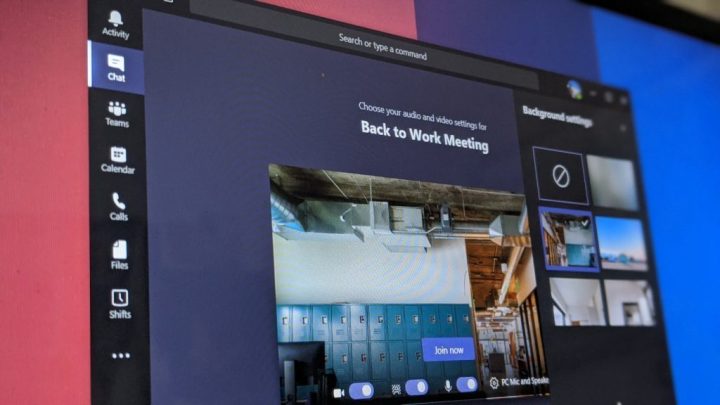
Step 3: If you don’t like the look of blue and prefer to pick a background, scrolling down on the Background Effects window will show you all the images that you can put up as your background. Many are just basic white rooms that won’t cause any distraction, but there are also a lot of nature scenes and fantasy landscapes to pick from. When you find one you like, you can select the Preview button at the bottom to see how it will look on your screen.
You can also upload and use any of your own images as backgrounds. To do so, tap the plus sign to start uploading an image from your phone or tablet. You’ll also need to make sure that the format is a .PNG, .JPG, or .BMP file.
Step 4: When you find a background you like, select Apply, and that will change your background for your upcoming meeting.
Changing the background during a meeting (on a phone or tablet)
If you’ve already started a video meeting, don’t worry! You can still apply a background effect any time you want; it’s just a slightly different process.
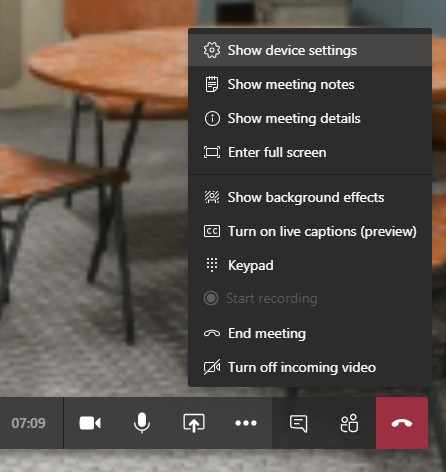
Step 1: Look at your Control Bar for Teams on the screen. It has icons for the camera, mic, etc. Click the Three Dots to access more settings.
Step 2: When your additional settings pop up, look for the option that says Show Background Effects. Select it. This will open up the same side window that we talked about for our previous instructions.
Step 3: The same options will be available to you now, including the option to blur the screen. However, since your video meeting has already begun, the Preview button is more important than ever (especially if other people are in the meeting). Use Preview to cycle through the backgrounds you like the best until you find the right one — this will avoid switching backgrounds on the video conference itself. When you find one that works, select Apply to start using it.
Changing the background before a meeting (on a computer)
Altering your background on the Microsoft Teams desktop app is really as easy as doing it on the mobile app. Certain settings are just called different things on the desktop version.
Step 1: Launch the Microsoft Teams desktop app. Then click Effects and avatars > Video effects.
Step 2: Choose Blur to blur the background, or select a Teams background to apply to your feed.
Step 3: You can also upload your own images (.PNG, .JPG, .BMP formats only). To do this, click More video effects > Add new.
Changing the background during a meeting (on a computer)
Step 1: Choose More > Effects and avatars from the top of the meeting panel.
Step 2: Decide whether you’d like to use the blur effect, a Teams image, or your own image. Then, click Preview to see what the effect will look like during your meeting. If you’re satisfied, click Apply.
Editors’ Recommendations