

With so many YouTube videos just a person (or animated person) being 90% a person looking at the screen and talking, it is really tempting to turn the screen off and slide your phone into your pocket and just listen. However, if you try this you may encounter something annoying — you don’t actually know how to get YouTube to play in the background on your phone.
If only you could, YouTube could quickly be the top alternative to the best podcast apps on iOS or on Android. But as is, you may very well be forced to pop your phone in your pocket with the screen still active, giving your pant’s pocket free range to tap your screen incessantly.
Unfortunately, closing the YouTube app (even by putting your phone to sleep) will stop the video from playing, but there are a few simple workarounds that will allow you to keep playing a video in the background — both on iPhone and Android phones. Better yet, there are ways to get a mini pop-up YouTube player while you browse elsewhere. This is our simple guide on how to get YouTube to play in the background, for both iPhone and Android devices.
Looking for music on YouTube to listen to in the background? Take a look at our guide on how to download music from YouTube and listen on any device.
How to get YouTube to play in the background with YouTube Premium
YouTube Premium is a subscription service that gets rid of ads on desktop and mobile, opens access to exclusive videos, and allows for the downloading of videos. But crucially for our purposes, it also allows you to continue watching YouTube in the background after shutting off your phone’s screen or navigating to a different app. There are no steps to turning this on as it’s on by default, so as long as you have YouTube Premium, it should work just fine.
YouTube Premium also comes with ad-free access to YouTube Music and it gives you the option to shut off the screen in that app, too. What is the catch? As you might expect, it’s money. YouTube Premium will cost you $12 a month or $23 a month for a family subscription for up to six members — but you can get a one-month free trial. YouTube’s app is available for both Android and iPhone.
While the added cost isn’t ideal, this is easily the most convenient way to play YouTube in the background on your iPhone or Android phone.
How to get YouTube to play in the background (iPhone browsers)
But what if you want to play YouTube videos in the background on your iPhone without paying for Premium? That’s where web browsers come in.
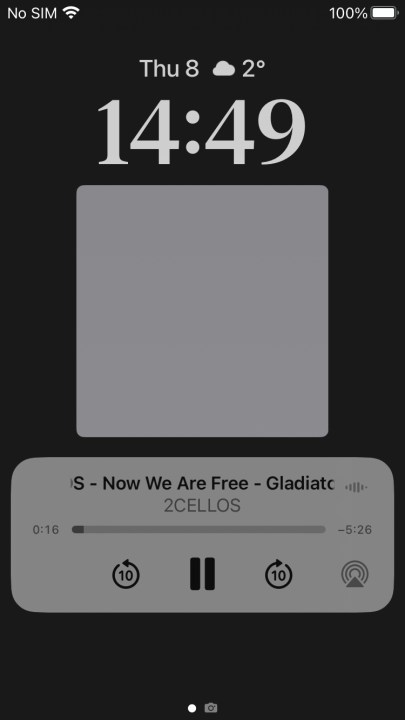
While shutting off the screen and continuing to listen to YouTube is a no-no in Safari and Chrome, it’s possible to use Apple’s Control Center with certain other browsers to bypass YouTube’s restrictions. Firefox and Opera are two browsers that definitely work with this method, and we recommend testing out any other iPhone browsers you prefer.
Here’s how you can get this method to work.
Step 1: First, navigate to YouTube from your browser of choice. If Google redirects you to the app from Firefox, try typing youtube.com directly into the URL bar.
Step 2: Next, search for your chosen video.
Step 3: Once you’ve found and opened your video, change over to the desktop version of the site.
This will vary depending on which browser you’re using, but it’s usually accessed from the Options button in the bottom-right, followed by a tap on the Desktop site option.
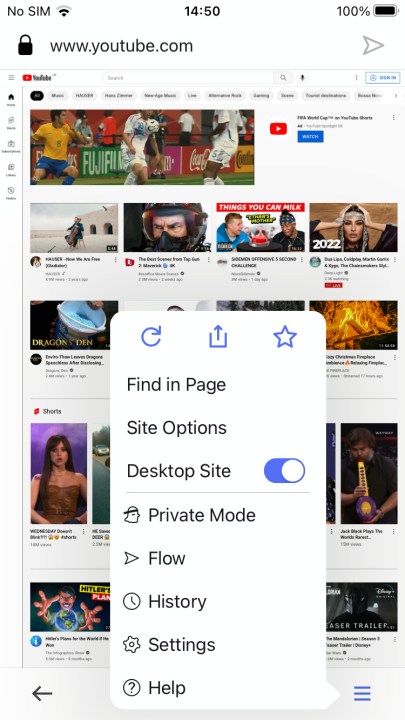
Step 4: Start your video. You may have to wait for ads to stop.
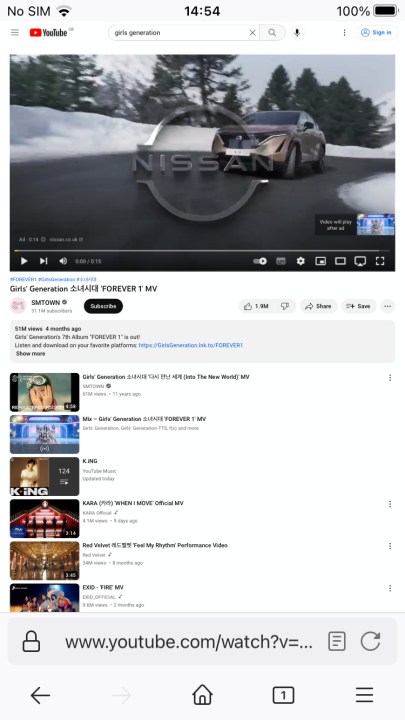
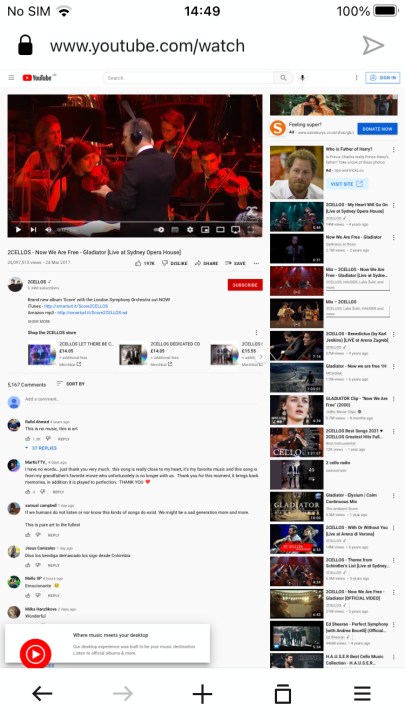
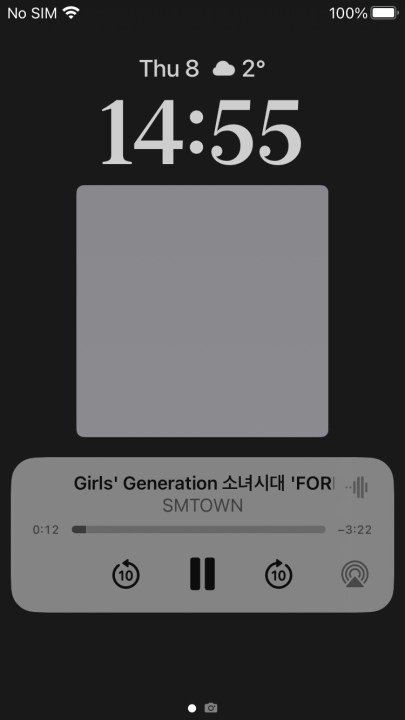
Step 5: Now go back to your home screen. Your video should start playing in picture-in-picture (PiP) mode.
Step 6: You can either leave the video playing in the PiP window and use your phone as normal, drag it over to the edge to hide it away, or tap the “x” button to close it.
While this requires a few more steps, it does allow you to play YouTube videos in the background on your iPhone — and without any money leaving your wallet.
How to get YouTube to play in the background (Android browsers)
Playing YouTube videos in the background in Android can be done in Firefox in a similar manner to the one above for iPhone. We’ve tested this for Firefox, and it could work on other, smaller browsers too. However, it’s unlikely to work on any browsers using Chrome as a base, as Chrome has removed this as an option.
Step 1: Launch Firefox as you would normally and go to the YouTube website. Make sure to type youtube.com in the URL entry, as tapping YouTube in Google search results will usually cause it to open the app.
Step 2: Navigate to the video you want to play in the background.
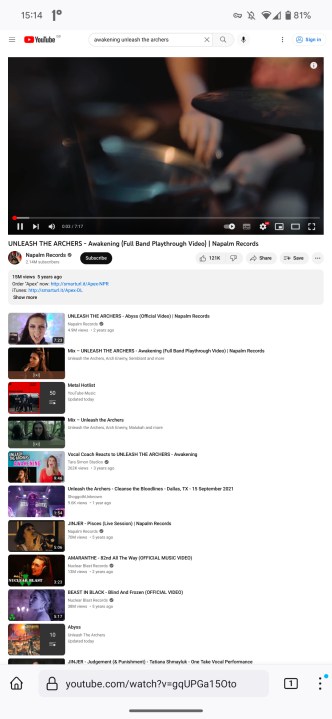
Step 3: Go to the Settings menu by tapping the three dots in the bottom-right corner of the window. Afterward, tap Request desktop site.
Step 4: Start playing the video, and swipe up to close your browser.
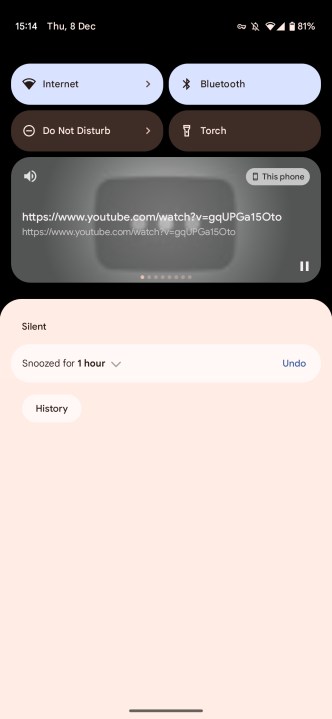
Step 5: Your video should keep playing, and will play in the notification shade.
How to use YouTube’s picture-in-picture mode on Android
This one seems like a bit of a cheat because it’s not an app at all. Ever since Android 8.0 Oreo, Android has enabled a “picture-in-picture mode,” which automatically pops up a miniature viewing window if you navigate away from YouTube. This window can be dragged anywhere on the screen and tapped to enlarge or to access playback controls.
This used to be for Premium subscribers only, but in 2018, Google started offering picture-in-picture on YouTube to non-subscribers, too, as long as you’re in the United States. However, it won’t work with content classified as music, so you’ll still need to pay for that.
On most Android phones, finding out which version you have is pretty easy. Simply go to Settings > About phone > Android version. You’ll need at least Android 8.0 Oreo for this feature, and since Oreo is over five years old, it’s likely you have a phone with this, or something newer.
How to use YouTube’s picture-in-picture mode on iPhone
Similarly, picture-in-picture mode is available for all iPhone users who subscribe to YouTube Premium. The feature is also available for non-Premium U.S. users. In other words, all iPhone users in the U.S. can watch YouTube videos in a pop-up window when the app is closed — even if you don’t have Premium. There’s nothing to this; just start playing and then go back to your home page.
Editors’ Recommendations