

Your treasured iRobot Roomba is likely one of the best purchases you’ve ever made. Between traditional vacuum jobs, it keeps your home neat and tidy by operating on a pre-determined schedule. The Roomba integrates with your Alexa ecosystem, sends you notifications, and can be controlled from the intuitive iRobot companion app. There’s only one trouble…
Once in a while, your Roomba experiences issue with Wi-Fi connectivity. Whether it drops off an existing network connection, displays or sounds a “not connected” message, or has trouble connecting to a network initially, internet struggles are never fun — especially when your smart home tech relies on it. That said, we’re here to help.
If your Roomba is throwing up a red flag when it comes to connecting to Wi-Fi, here are a few things you can try.
Why is my Roomba not connecting to Wi-Fi?
When booting up your Roomba for the first time, you’ll be prompted (through the companion app) to pair the new robot vac to a compatible Wi-Fi network. While this process should take no time at all — as the bot will typically connect to the Wi-Fi network your phone is tethered to — there are times when the process may not be so direct.
Here are some common hiccups you may run into and what you can do to get past them.
Step 1: First thing’s first: Ensure your Wi-Fi network is operating correctly.
Sometimes we take this troubleshooting step for granted because we’re so used to all of our web-connected gear being operational. In some cases, even if your Wi-Fi is actually working, it may not be running at peak performance, making it difficult to connect and register new devices.
If you notice your network is a bit slower than normal, or you can’t get your new robot vac online, a simple fix is to reboot your router. We recommend unplugging, waiting for about 15 seconds, and then re-powering the router.
Once your network returns, try and reconnect your Roomba again.
Step 2: Ensuring that your Roomba is connected to the correct wireless network band is a must.
These days, most wireless routers (even the ones from your cable provider) will broadcast both 2.4GHz and 5GHz frequencies. Traditionally, 2.4GHz is best for operating equipment that is farther away from your router’s home base, while 5GHz is recommended for connecting equipment that is closer in proximity to your router.
While we recommend keeping robot vacuums connected to the 2.4GHz band, many Roomba models have the capability of pairing to a 5GHz network.
That’s many models — not all models.
The Roomba 600 lineup is only capable of connecting to a 2.4GHz network. In fact, all models below the i6 family cannot be paired to a 5GHz network. If you’ve been attempting to get your 600 model paired up with a 5GHz band, that’s the issue.
Go into your iRobot companion app, change the Wi-Fi to your 2.4GHz option, and you should be good to go.
Step 3: If your Roomba’s performance has been somewhat choppy, it may be a matter of distance. Ideally, your vacuum’s home base should be fairly close to your router for optimal operating conditions.
The farther away the base station is from your router, the less bandwidth your dock sends back to the Roomba.
If your Roomba’s charge dock is located far from your router, consider relocating it closer to your network hub.
Step 4: If all else fails, sometimes a factory reset is what you’ll need to get your Roomba back to running in tip-top shape. This process essentially wipes your vacuum’s internal memory, and will likely require you to add it back into the app as if it were brand new.
Depending on what Roomba model you own, the reset process will be different. Fortunately, we’ve covered this resetting process in detail before.
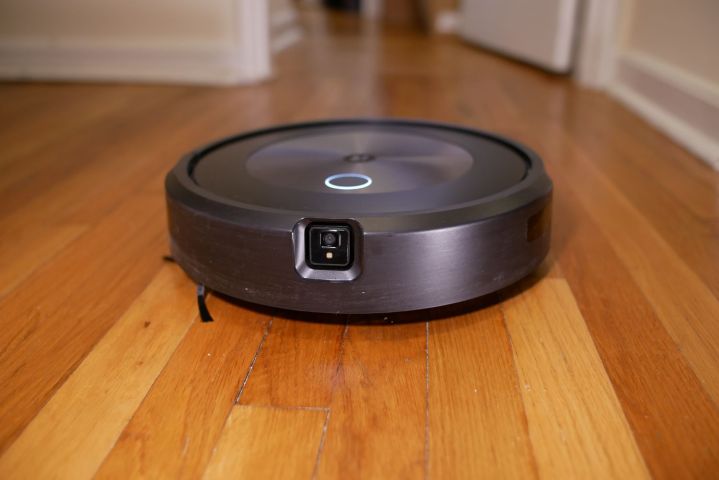
How do I reconnect my Roomba to Wi-Fi?
In the event that your Roomba becomes unpaired from your network, or you’re setting your vac up for the first time, getting the bot connected is a quick and easy process.
Step 1: Ensure your mobile device is connected to whatever network (2.4GHz or 5GHz) your Roomba supports. You’ll also want to make sure you’ve enabled Bluetooth on your device.
Step 2: Verify the Roomba is on its charge dock. Then, launch the iRobot companion app from your mobile device.
Step 3: If this is the first time you’re adding the Roomba to your Wi-Fi network, choose Add Robot. Then, choose a name for your vacuum and press Continue.
Step 4: Enter the password for your Wi-Fi network and press Continue. From here, your Roomba should automatically pair to your network.
Step 5: If you’ve experienced a network outage or some kind of intermittent trouble with your Wi-Fi, or simply want to change the network that your Roomba lives in, launch the iRobot app and head into Network settings.
Find the network you want the vac to connect to, enter the password, and wait for your Roomba to connect.
Editors’ Recommendations