
Daily Guardian UAEDaily Guardian UAE
  • Home
  • UAE
  • What’s On
  • Business
  • World
  • Entertainment
  • Lifestyle
  • Sports
  • Technology
  • Travel
  • Web Stories
  • More
    • Editor’s Picks
    • Press Release
What's On

Shaklan Group’s Dream Home Giveaway: A Game Changer in Retail

May 15, 2026

A new Xbox controller is coming and it’s not what you’d expect

May 15, 2026

Dyson and Ounass partner to bring ‘Hair Love’ pop up to Dubai

May 15, 2026

Samsung PenUp adds new stylus tricks to your Galaxy phone, if it support an S Pen

May 15, 2026

IMAN Developers sets the benchmark as Dh300 million Oxford Cove sells out in two hours

May 15, 2026
Facebook X (Twitter) Instagram
Finance Pro
Facebook X (Twitter) Instagram
Daily Guardian UAE
Subscribe
  • Home
  • UAE
  • What’s On
  • Business
  • World
  • Entertainment
  • Lifestyle
  • Sports
  • Technology
  • Travel
  • Web Stories
  • More
    • Editor’s Picks
    • Press Release
Daily Guardian UAEDaily Guardian UAE
Home » How to set up an out-of-office reply in Outlook on any device
Technology

How to set up an out-of-office reply in Outlook on any device

By dailyguardian.aeFebruary 21, 20244 Mins Read
Share
Facebook Twitter LinkedIn Pinterest Email

If you’re going to be away from work on vacation, a leave of absence, or something similar, you may want to set up out-of-office in Microsoft Outlook. This is an automatic reply that lets others know that you’re away and won’t be responding for a particular time period.

The nice thing about automatic replies like this in Outlook is that you can schedule them for the timeframe you need. If you prefer, you can also turn the feature on and off manually.

Here’s how to set up out of office messages in Outlook on Windows, Mac, and the web.

How to setup an automatic out of office reply in Outlook on Windows

You can create and schedule an out of office reply in the Outlook desktop app on Windows in just minutes.

Step 1: Open Outlook on Windows and select the File tab.

Step 2: Confirm that Info is selected on the top-left. Then, click Automatic replies on the right.

Step 3: At the top of the pop-up window, mark the option for Send automatic replies and then type your message in the text box at the bottom.
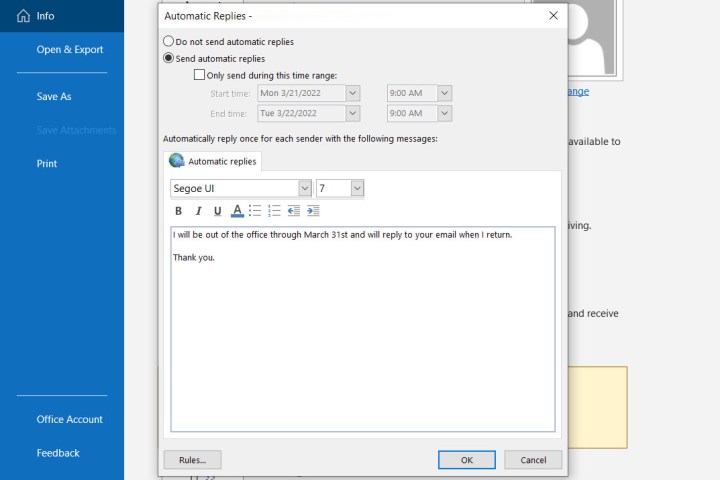
Automatic Replies window to create the message in Outlook.

Step 4: To schedule the reply, check the box for Only send during this time frame and choose the start and end dates and times.

If you don’t select a timeframe, return to this spot to turn off the automatic reply manually.
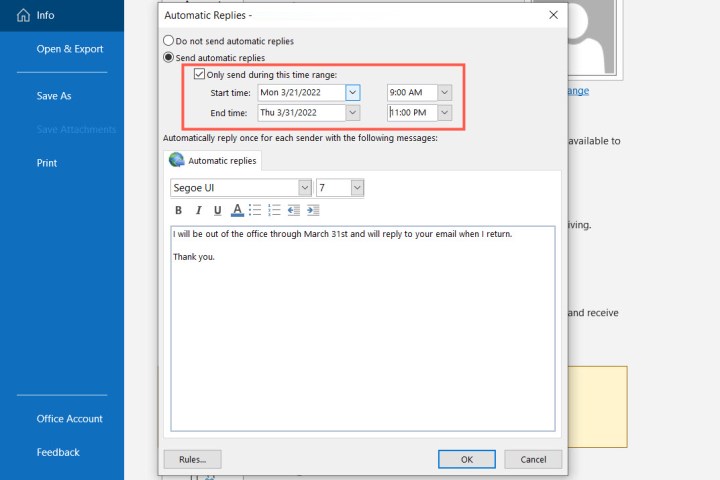
Start and end dates and times for Automatic Replies in Outlook.

Step 5: Click OK when you finish.

How to setup an automatic out of office reply in Outlook on Mac

If you’re using the new Outlook on Mac, you can set up and schedule your out of office reply using the following steps:

Step 1: Open Outlook on Mac and select Tools > Automatic replies from the menu bar.

Step 2: When the Automatic Replies window appears, check the box at the top to enable automatic replies, and enter your message into the box directly below.

Automatic Replies in Outlook on Mac.

Step 3: To schedule the reply, check the box for Send replies only during this time period. Then, pick the start and end dates and times.

If you don’t use the schedule feature, return to this area to turn off the automatic reply manually.
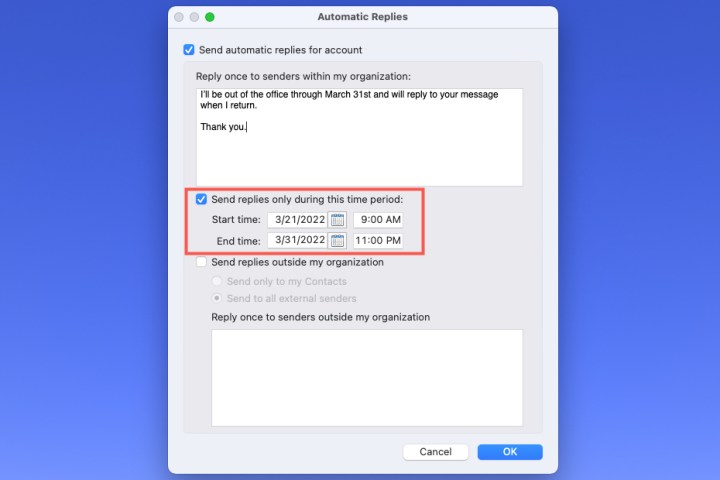
Start and end dates and times for Automatic Replies in Outlook.

Step 4: To send the out of office reply to those outside your organization, check that box next. You can choose Send only to my contacts or Send to All External Senders.

Then, enter the automatic reply you’d like to send in that text box.
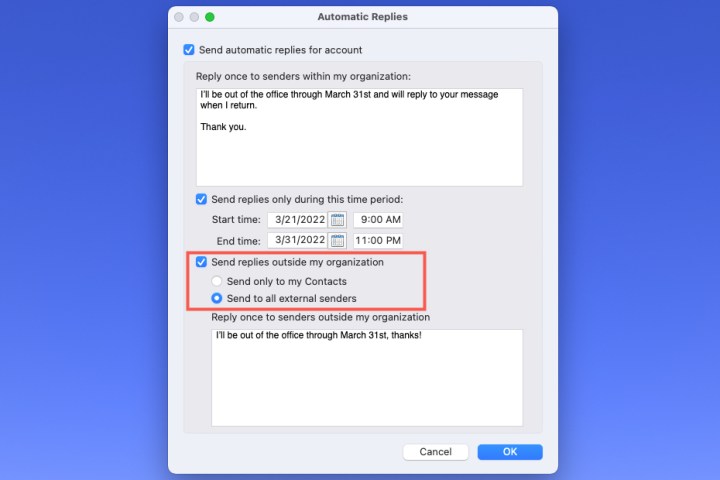
Outside of your organization reply options in Outlook.

Step 5: Click OK when you finish.

How to setup an automatic out of office reply in Outlook on the web

If you use Outlook on the web, it’s just as easy to create and schedule your automatic reply.

Step 1: Visit Outlook on the web and sign in.

Step 2: Click the Gear icon on the top-right and pick View all Outlook settings at the bottom of the sidebar.

Step 3: In the pop-up window, choose Mail on the far left and Automatic replies to the right.

Step 4: Turn on the toggle at the top and enter your out-of-office message.
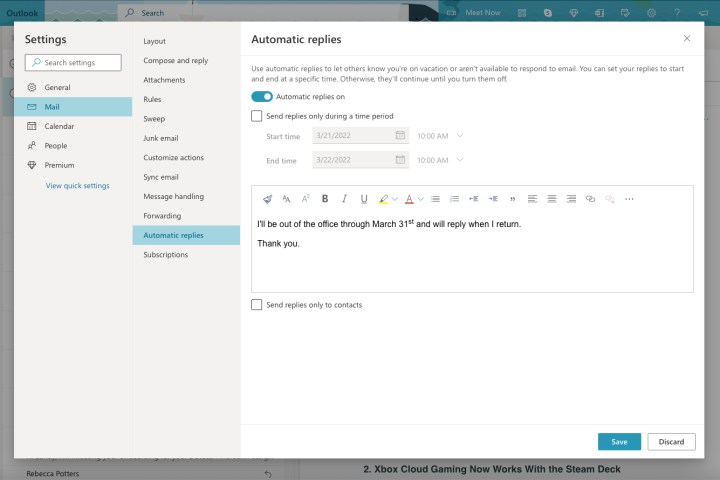
Automatic Replies in Outlook on the web.

Step 5: To schedule your automatic reply, check the box for Send replies during a time period. Then, pick the start and end dates and times. Optionally, check the boxes that appear for additional settings that apply to Outlook Calendar during the timeframe.

If you don’t schedule your out-of-office reply, you can return to this location in the settings to turn it off manually.
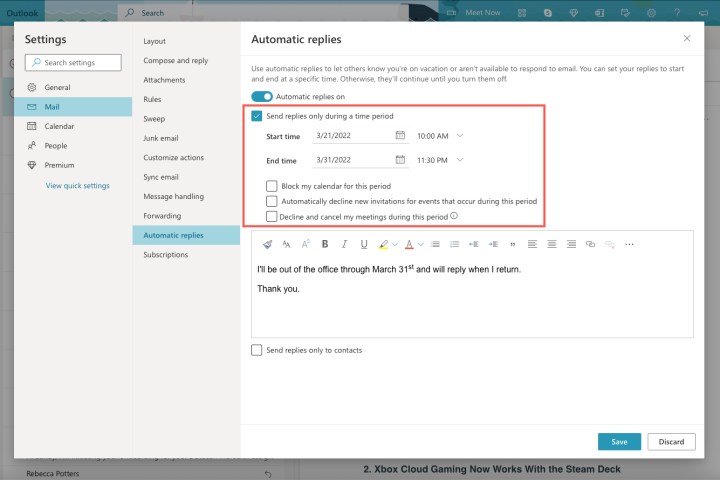
Start and end dates and times for Automatic Replies in Outlook.

Step 6: To send this automatic reply only to your Outlook contacts, check the box at the bottom.

Step 7: When you finish, click Save and the X on the top-right to close these settings.

Now that you know how to set up an automatic reply in Outlook, take a look at the application’s updated features or learn more things you can do in Microsoft Outlook.

Editors’ Recommendations


Share. Facebook Twitter Pinterest LinkedIn Tumblr Email

Keep Reading

A new Xbox controller is coming and it’s not what you’d expect

Samsung PenUp adds new stylus tricks to your Galaxy phone, if it support an S Pen

AI shouldn’t make decisions for you, but this one will tell when you’re making a bad one

Wowed by computer-use AI agents? Research says they’re “digital disasters” even for routine tasks

Bombshell OpenAI lawsuit claims your ChatGPT convos were shared with Google and Meta

AMD is bringing FSR 4.1 upscaling to older GPUs like an elixir of new gaming life

Dell expands AI PC lineup with new slim Dell 14s and 16s laptops

Forget smart glasses, these earbuds can see, hear, and remember everything for you

Meta will allow third-party apps for Ray-Ban Display glasses. Your eyes must stay glued to digital reality.

Editors Picks

A new Xbox controller is coming and it’s not what you’d expect

May 15, 2026

Dyson and Ounass partner to bring ‘Hair Love’ pop up to Dubai

May 15, 2026

Samsung PenUp adds new stylus tricks to your Galaxy phone, if it support an S Pen

May 15, 2026

IMAN Developers sets the benchmark as Dh300 million Oxford Cove sells out in two hours

May 15, 2026

Subscribe to News

Get the latest UAE news and updates directly to your inbox.

Latest Posts

AI shouldn’t make decisions for you, but this one will tell when you’re making a bad one

May 15, 2026

Mercato Mall Presents Unfolding in Blue — A Moving Tribute to Inclusion, Creativity, and Sensory Art

May 15, 2026

Wowed by computer-use AI agents? Research says they’re “digital disasters” even for routine tasks

May 15, 2026
Facebook X (Twitter) Pinterest TikTok Instagram
© 2026 Daily Guardian UAE. All Rights Reserved.
  • Privacy Policy
  • Terms
  • Advertise
  • Contact

Type above and press Enter to search. Press Esc to cancel.